

RideCharge Help
Overview
Booking
- How do I book a car?
- Where can I book a car?
- What if a booking is not available in a particular area?
- What happens after I book a ride?
- How are transportation providers chosen?
- How do I keep track of my rides using ride status?
- How do I make a change to an existing reservation, such as the pickup time or drop off location?
- How can another RideCharge user or Administrative Assistant book a ride for me?
Payment and E-Receipts
- How do I pay for a ride?
- How do I get a receipt for a ride?
- How are tips and fees handled?
- What happens if I pay with cash?
Special Situations
- What do I do if I can't find my car?
- What do I do if I want to cancel a ride I have booked?
- Who do I call if there is a problem?
- How do airport pickups work?
Account Management
RideCharge Mobile Application Help
Overview
- How do I book a ride?
- How does the Default Provider feature work?
- How do I pay for a ride?
- How do I see rides I have taken?
Troubleshooting
- What do I do if I rejected https connections on my device?
- How do I re-download the RideCharge mobile application?
- What do I do if the driver asks for a signature?
- Why do I get a confirmation number after my ride?
- How do I pay if I am using a different phone?
Curb by Text Message (TMAGIC shortcode)
Overview
Booking
- How do I book a taxi?
- What happens if you aren’t certain of my pickup location?
- Is there a way to save common pickup locations?
Special Situations
- How do I cancel a taxi I have booked?
- How do I get help when I’m using my mobile phone?
- How do I stop receiving text messages from Curb?
- How do I restart text messages from Curb?
- How do I contact someone at Curb if I have an issue or question?
RideCharge Help
Overview
- <div class="topLink"><a href="#top">top</a></div> How does a ride work?
-
A ride can be booked either online or with the mobile application. You can view the status of your ride in the mobile application, or online in the "Rides on My Mobile" section. You will be sent a reminder of an upcoming ride one hour before the pickup takes place.
Payment occurs at the end of the ride. Select "Confirm Ride Taken" in your mobile application and follow the instructions displayed:
-
For Taxis: You enter the amount you would like to pay into the mobile
phone (the driver can tell you the cost of the ride based on the local meter
rate or a zoned flat rate). Your method of payment will be charged for this
amount and your driver will be paid by his/her fleet office as with a standard
"house account."
-
For Sedans, Limos or Shuttles: You authorize a charge using your mobile
phone, to indicate that you took the ride. Select "Confirm Ride Taken" on your
mobile application and follow the instructions displayed.
-
In some cases your driver may be unable to tell you the cost of the ride
immediately. The ride cost is calculated later by the transportation company's
main office, and they will submit the total charges to us. If this is the
case, you will only be asked to confirm that you took the ride. We will bill
your method of payment and display the charges online in the E-Receipts section
of our website. For details on using the mobile phone for Payment, see How do
I pay for a ride?
-
For Taxis: You enter the amount you would like to pay into the mobile
phone (the driver can tell you the cost of the ride based on the local meter
rate or a zoned flat rate). Your method of payment will be charged for this
amount and your driver will be paid by his/her fleet office as with a standard
"house account."
Booking
- <div class="topLink"><a href="#top">top</a></div>How do I book a car?
-
Go to the "Make Reservations" tab of the website or select "New Ride" on the mobile application. Enter your pickup location, the time you would like to be picked up, and your drop-off location. Click "Search For Ride". Options that meet your search criteria will be displayed. Click on one of the options, enter any special pickup instructions you would like communicated to the transportation provider, and click "Book Now".
Always, double-check the pickup location and the date/time displayed above the options presented before you click "Book Now".
- <div class="topLink"><a href="#top">top</a></div>Where can I book a car?
-
Bookings are available in all major US cities. The best way to check for service is to enter a search. Where a booking is not available, phone numbers for transportation companies in your search area will be displayed. Areas are continually being added to the national network.
- <div class="topLink"><a href="#top">top</a></div>What if a booking is not available in a particular area?
-
If a booking is not available either within an area or at a particular time, the best way to book a car is to call a local provider directly. In this case, your search will result in phone numbers for transportation companies in major metropolitan areas.
- <div class="topLink"><a href="#top">top</a></div>What happens after I book a ride?
-
The communication selections you make determine how RideCharge notifies you. After booking a ride, RideCharge will notify you to confirm your booking, remind you that a ride will occur shortly and let you know when a ride is approaching your location.
After completing a ride, RideCharge will notify you when your E-receipt is ready.
- <div class="topLink"><a href="#top">top</a></div>How are transportation providers chosen?
-
The aim in choosing providers is to ensure quality service coverage where our riders need it most. They are often the largest providers in their area and operate modernized fleets with the leading technological capability. We engage in deep technical integration with the providers to ensure that your bookings and payments are linked directly to their internal systems to ensure reliable, quality service.
- <div class="topLink"><a href="#top">top</a></div>How do I keep track of my rides using ride status?
-
You can expect to see the following ride statuses as the state of your ride changes:
Booking Statuses
-
Draft means that you have saved a search but not booked it with a partner
company. You must book the ride in order to make a reservation.
-
Booked means you have submitted a pickup request, and have
completed your reservation. Your car will arrive at the designated place and
time.
-
Canceled means you have deleted the booking. No car will arrive.
Mobile Payment Statuses
-
Pay means you must authorize a charge for the ride using your mobile
phone. This is how you pay for the ride.
-
Paid means you have authorized a payment on your mobile device, and
your method of payment has been charged.
Exceptional Statuses
-
Provider canceled means the provider is unable to provide service and has deleted the booking.
-
Missed means the driver was unable to find you; no-show fees may apply
-
Draft means that you have saved a search but not booked it with a partner
company. You must book the ride in order to make a reservation.
- <div class="topLink"><a href="#top">top</a></div>How do I make a change to an existing reservation, such as the pickup time or drop off location?
-
Once a reservation is made, it cannot be changed. However, you can cancel the existing reservation and simply create a new one with the correct information.
- <div class="topLink"><a href="#top">top</a></div>How can another RideCharge user or Administrative Assistant book a ride for me?
-
You may allow another RideCharge account holder to book rides for you (Your assistant must have a RideCharge account). First, setup your assistant by selecting Preferences from the My Account tab. Then, enter the email address of the other person you wish to grant access to your RideCharge account into the Administrative Assistants field.
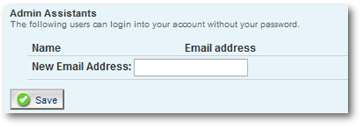
When your administrative assistant logs into RideCharge, the option to ‘Login As’ you will appear on the bottom left of the make Reservations page.
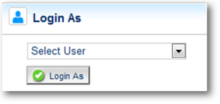
To return to administrative assistant's account, select "Logout" at the top right of the page.

Payment and E-Receipt
- <div class="topLink"><a href="#top">top</a></div>How do I pay for a ride?
-

At or near the end of your ride you can pay with your mobile device using the Pay for this Ride function. Select the trip you want to pay for from your ride list. Click on Pay for this Ride and follow the instructions for completing the form that appears. The status of the ride will become Paid and the ride will appear in the E-Receipts section online.
A driver may complete a paper voucher as well. In these circumstances, please do not be concerned about double billing. You will be only responsible for what is entered on your mobile device. Your method of payment is not provided to the transportation company. A paper voucher is merely a way for the driver and the transportation company to keep a record of the ride.
- <div class="topLink"><a href="#top">top</a></div>How do I get a receipt for a ride?
-
You can find your list of E-Receipts in the "E-Receipts" tab of the website. You can view details for an E-Receipt by clicking on "Details". Or you can select a set of e-receipts to export to PDF, a printer, Excel or email. Most E-Receipts are available as soon as you have paid for a trip using your mobile phone.
In some cases, sedan or limo companies may require time to calculate the cost of the ride at their main office. They will transmit this billing information to us, and once your method of payment is billed, an E-Receipt will be available.
- <div class="topLink"><a href="#top">top</a></div>How are tips and fees handled?
-
You must authorize all payments using your mobile phone, including tips and fees:
For Taxis or Shuttles: When you enter the amount you would like to pay into the mobile phone, include any tips or fees as part of that total. You are entering the total amount to be paid.
For Sedans or Limos: When you authorize a charge using your mobile phone, this will cover any tips or fees along with the base fare. The ride cost is calculated later by the sedan company main office, and they will submit the total charges to us including any tips and fees that apply. We will bill your method of payment for the total and display the charges online in the E-Receipts section of our website.
- <div class="topLink"><a href="#top">top</a></div>What happens if I pay with cash?
-
If you pay with cash, you will not be billed for the cost of the ride. You will be billed the standard transaction charge, if you booked the ride with us. You will receive an E-Receipt for this transaction charge in the E-Receipt section of the website.

Special Situations
- <div class="topLink"><a href="#top">top</a></div>What do I do if I can't find my car?
-
Use the "Call Provider" feature to contact the transportation provider directly. Within the mobile application, select your reservation and "Call Provider" from the application menu to reach your provider's reservation and dispatch personnel. By reaching the provider directly, you will be able to get the most real-time and accurate information about the location of your vehicle.
Additionally, your mobile phone will be sent a text message reminder about your trip, including the service provider's direct number. If you have opted not to receive text messages, you will receive an email with this information. You can use this number to reach the provider directly. This information is also available online at our website.
If your provider says the car has come and gone, you can re-book directly with them, or book an ASAP trip on your mobile device.
- <div class="topLink"><a href="#top">top</a></div>What do I do if I want to cancel a ride I have booked?
-
You can cancel a booking either online or using the mobile application. Online, click on the booking you would like to cancel and it will open in the "Upcoming Trips" tab. Click on the "Cancel" button.
On the mobile application, select the booking you would like to cancel and use the "Cancel" feature on the menu.
Cancelations can be made at anytime. However, charges may apply if you cancel bookings after vehicle is dispatched, policies vary by service provider. Generally you will not be charged if you cancel:
- At least 20 minutes in advance for taxis
- At least 1 to 2 hours in advance for sedans and limos
- At least 4 hours for shared rides (shuttle busses)
If a cancelation cannot be made using our reservation software, you must call the transportation provider directly. For all reservations, please check the “Ride Details” section for specific cancelation policies, which vary according to local regulations, service provider and service type. Leaving your pick-up location without canceling online, on your mobile, or notifying the service provider may result in a "no-show" charge.
- <div class="topLink"><a href="#top">top</a></div>Who do I call if there is a problem?
-
If there is a problem with finding the vehicle, use the Call Provider feature to contact the service provider directly. By reaching the provider directly, you will be able to get the most real-time and accurate information about the location of your vehicle.
If there is a technical problem with RideCharge software, with bookings, payment, or account management, please email support@gocurb.com.
- <div class="topLink"><a href="#top">top</a></div>How do airport pickups work?
-
You can book an airport pickup like any other ride. At most airports, reserved cars meet passengers at a designated area. You can access information about the pickup area and instructions by clicking on "Ride Details" in the mobile application or online.
Follow the ride-specific instructions displayed in the "Ride Details" section related to your booking. Rules for airport pickup reservations can vary by airport and by the service type that you select. In some cases, you may need to inform the service provider that you are ready to be picked up, by clicking on "Call Provider". All instructions and information can be accessed in the "Ride Details" section related to your booking, including when it is necessary to "Call Provider" to have your car dispatched.
For details on using the mobile phone "Call Provider" feature, see What do I do if I can't find my car?
Account Management
- <div class="topLink"><a href="#top">top</a></div>How do I change my communication preferences?
-
You can change how you prefer to receive booking confirmations and ride reminders by going to the "My Account" tab and clicking on the "Preferences" sub-tab. Click the check boxes to indicate the types of communication you would like to receive:
Booking Confirmations can be received via e-mail, SMS, and/or Outlook (iCalendar) invites.
Ride Reminders can be received via e-mail and/or SMS, either one day or one hour before the ride takes place. If you have not downloaded the mobile application, we recommend receiving ride reminders by SMS.
RideCharge Mobile Application Help
Overview
- <div class="topLink"><a href="#top">top</a></div>How do I book a ride?
-
Select “New Ride” on the RideCharge Mobile Application. Enter your pickup location, the time you would like to be picked up, and your drop-off location. Click “Search For Provider”. Options that meet your search criteria will be displayed. Click on one of the options, enter any special pickup instructions you would like communicated to the transportation provider, and click “Book Now”.
Always, double-check the pickup location and the date/time displayed above the options presented before you click “Book Now”.
- <div class="topLink"><a href="#top">top</a></div>How does the Default Provider feature work?
-
We have built a Default Provider feature in the Curb for iPhone app that allows you to more quickly book rides with your most frequently used taxi fleet. When a Default Provider is set, you will automatically skip the directory screen and go straight to the pickup address screen. To see the full fleet directory for your location just tap the Directory button in the top left corner. Default Provider can be set in two ways. First, you may set your Default Provider yourself by tapping a booking fleet in the directory and then tapping the Set as Default button at the bottom of the screen. Second, we may automatically set your Default Provider for you based on your booking history. You can view and clear your Default Provider from the settings screen.
- <div class="topLink"><a href="#top">top</a></div>How do I pay for a ride?
-
At or near the end of your ride you can pay with your mobile device using the Pay for this Ride function or Dial to Pay by calling 877-41RIDER (877- 417-4337). Using the RideCharge Mobile Application, select the trip you want to pay for from your ride list. Click on Pay for this Ride and follow the instructions for completing the form that appears. The status of the ride will become Paid and the ride will appear in the E-Receipts section online.
A driver may complete a paper voucher as well. In these circumstances, please do not be concerned about double billing . You will be only responsible for what is entered on your mobile device. Your method of payment is not provided to the transportation company. A paper voucher is merely a way for the driver and the transportation company to keep a record of the ride.
- For Taxis: You enter the amount you would like to pay into the mobile phone (the driver can tell you the cost of the ride based on the local meter rate or a zoned flat rate). Your method of payment will be charged for this amount and your driver will be paid by his/her fleet office as with a standard “house account.”
- For Sedans, Limos or Shuttles: You authorize a charge using your mobile phone, to indicate that you took the ride. Select “Pay for This Ride” on your mobile application and follow the instructions displayed.
- In some cases your driver may be unable to tell you the cost of the ride immediately. The ride cost is calculated later by the transportation company’s main office, and they will submit the total charges to us. If this is the case, you will only be asked to confirm that you took the ride. We will bill your method of payment and display the charges online in the E-Receipts section of our website.
- <div class="topLink"><a href="#top">top</a></div>How do I see rides I have taken?
-
You can find your list of E-Receipts in the “E-Receipts” tab of the website. In addition, you can select E-receipts on the RideCharge Mobile Application. A list of you E-receipts will be displayed. Select ‘Ride Details’ to see ride information, charges, ride details and pickup/drop off information.
Troubleshooting RideCharge Mobile Application
- <div class="topLink"><a href="#top">top</a></div>What do I do if the driver asks for my signature?
-
If your driver is asking for a signature after you arrive at your destination and you use RideCharge to pay for your ride, tell the driver to check the his/her screen for a message that the Ride has been paid.
A driver may still want to complete a paper voucher and request that you sign it. A paper voucher is merely a way for the driver and the transportation company to keep a record of the ride.
- <div class="topLink"><a href="#top">top</a></div>Why do I get a confirmation number after my ride?
-
This confirmation number is used by the driver to get paid by his taxi company. It is automatically sent to the driver, but the driver might not see it on their screen. You may give the driver this number if he or she asks for it.
- <div class="topLink"><a href="#top">top</a></div>How do I pay if I am using a different phone?
-
You can pay for your ride using a phone even if it is not registered with RideCharge. Call 877-42RIDER (877- 417-4337). If our system does not recognize your phone number, you will be asked to enter the phone number registered with RideCharge. You will then need to authenticate your account using your PIN.
Curb by Text Message (TMAGIC shortcode)
Overview
- <div class="topLink"><a href="#top">top</a></div>How does the service work?
-
Curb by Text Message allows users to book a taxi by sending a text message from a mobile phone to the TMAGIC shortcode – 862442. Curb verifies your address, sends your order into the dispatch system of an integrated taxi partner, responds to you by text message to confirm your order, and then sends you another text message with the cab number and driver name when your taxi is dispatched. There are some locations where Curb does not have an integrated taxi partner with dispatch system integration. In these places where we cannot electronically book your taxi we will instead text you one or more taxi fleet phone numbers so that you can call them directly.
- <div class="topLink"><a href="#top">top</a></div>Are there any costs for using the service?
There are no fees charged by Curb for use of this taxi booking service. However, any standard text messaging rates charged by your wireless carrier do apply.
Booking
- <div class="topLink"><a href="#top">top</a></div>How do I book a taxi?
-
To book a taxi text your pickup address to TMAGIC. Lower case and upper case letters are considered the same. The following pickup address formats will all work:
- Street address plus postal zip code. Ex. “1558 w barry ave 60657”
- Street address plus city and state. Ex. “1558 w barry ave chicago il”
- Street address plus city, state and zip code. Ex. “1558 w barry ave chicago il 60657”
- Business name plus postal zip code. Ex. “codys public house 60657”
- Business name plus city and state. “codys public house chicago il”
- Business name plus city, state and zip code. Ex. “codys public house chicago il 60657”
- <div class="topLink"><a href="#top">top</a></div>What happens if you aren’t certain of my pickup location?
-
Sometimes we need further input from you to fully identify the correct pickup address. In these cases a response text is sent with options for you to choose between. Here's a complete example:
- User text: “codys bar 60657”
- Curb text reply: “Reply with letter of pick up location: D: Cody's Saloon & Grill, 500 s Schmale, G: Cody's Public House, 1658 W Barry Ave”
- Now you can choose to text reply D or G to book the associated location. If none of the options are what you want to book, send a new address with a different name or more context such as the city name or postal code.
- <div class="topLink"><a href="#top">top</a></div>Is there a way to save common pickup locations?
-
You can create a shortcut label to identify frequently used pickup locations like your home, work or favorite bar.
- To create a label text the symbol ! or # followed by the label name you'd like to apply to a location and the address of that location. Ex. “!work 5904 richmond hwy 22303”
- To book a taxi for the address associated with your shortcut label just text the symbol and label name combination to TMAGIC, and a taxi will be ordered for the address stored against the label. Ex. “#work”
Special Situations
- <div class="topLink"><a href="#top">top</a></div>How do I cancel a taxi I have booked?
-
To cancel a taxi just text NOTAXI to TMAGIC. Ex. “NOTAXI”. We will send a text reply to confirm the cancellation.
- <div class="topLink"><a href="#top">top</a></div>How do I get help when I’m using my mobile phone?
-
To get help text HELP to TMAGIC. Ex. “HELP”. We will send you a text reply with help information.
- <div class="topLink"><a href="#top">top</a></div>How do I stop receiving text messages from Curb?
-
To stop receiving text messages (unsubscribe) from us text STOP to TMAGIC. Ex. “STOP”
- <div class="topLink"><a href="#top">top</a></div>How do I restart text messages from Curb?
-
To resume text messages (re-subscribe) from us text START to TMAGIC. Ex. “START”
- <div class="topLink"><a href="#top">top</a></div>How do I contact someone at Curb if I have an issue or question?
-
To contact us please send an email to support@gocurb.com or fill out a contact form.
